
Galaxy Watch Settings: 5 Essential Changes I Make on Every Samsung Smartwatch
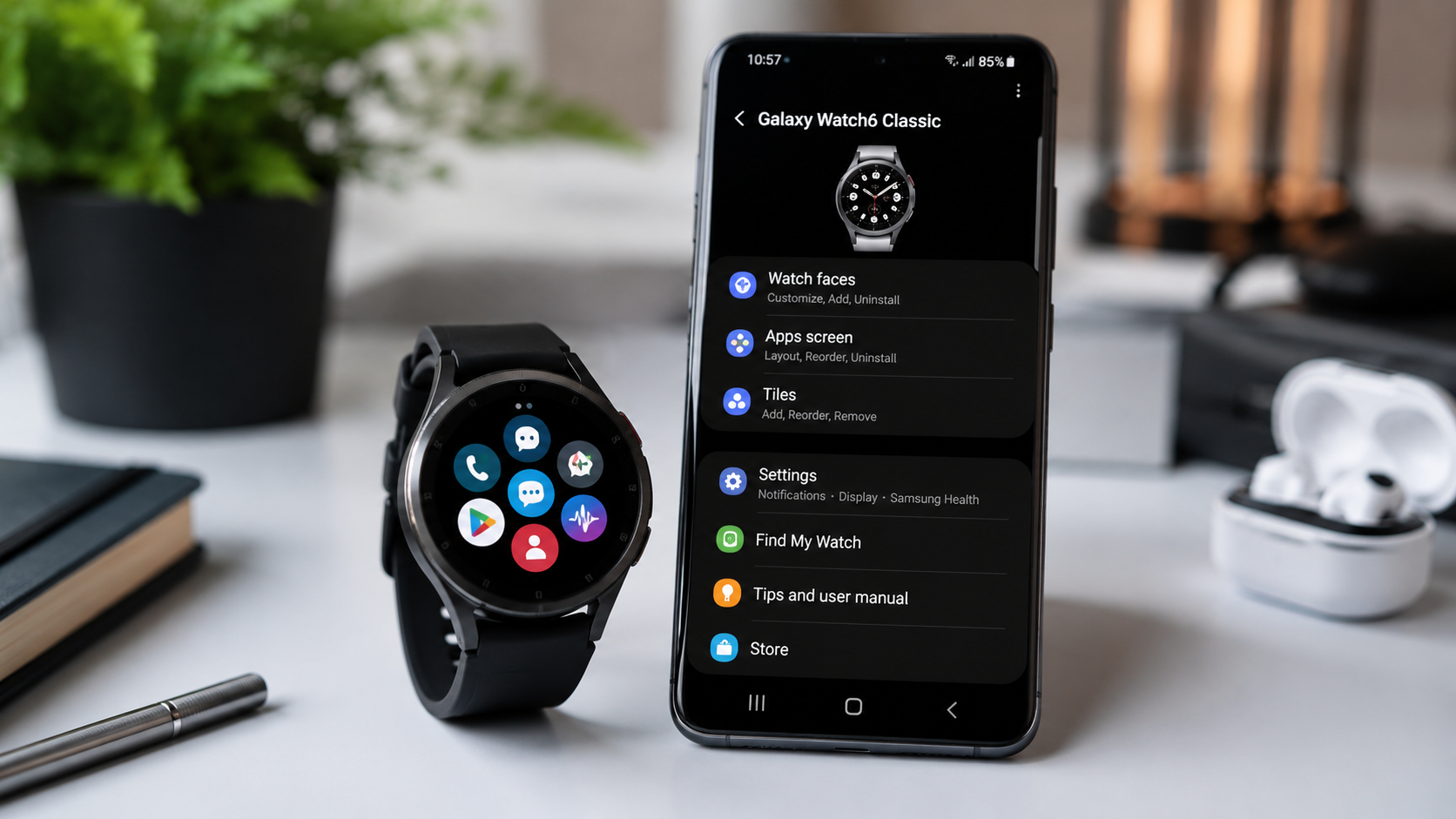
The right Galaxy Watch settings can completely change how your smartwatch feels in everyday use. While Samsung’s Galaxy Watch lineup already works well out of the box, a few small adjustments can improve battery life, reduce distractions, and make the watch feel faster and more personal. Every time I set up a new Galaxy Watch, these are the first settings I change before doing anything else.
Table of Contents
- Why Galaxy Watch Settings Matter
- Disable Unnecessary Notifications
- Adjust Display and Brightness Settings
- Improve Battery Life with Smarter Options
- Customize Health and Fitness Tracking
- Turn On Useful Privacy Features
- Additional Galaxy Watch Tips
- Conclusion
Why Galaxy Watch Settings Matter
Samsung includes dozens of features on its smartwatches, but not every feature needs to stay enabled all the time. Some settings quietly drain battery life, while others create unnecessary distractions during the day.
Taking a few minutes to customize your Galaxy Watch settings can make the smartwatch feel more comfortable, efficient, and easier to use. Small changes often create the biggest improvements in daily experience.
Disable Unnecessary Notifications
One of the first things I adjust is notification management. By default, Galaxy Watches can send alerts for almost every app installed on your phone. While that may sound useful, constant buzzing quickly becomes annoying.
Best Notification Settings to Change
- Disable social media notifications you do not need
- Keep important apps like messages and calls enabled
- Turn off duplicate phone notifications
- Use vibration instead of loud sounds during work hours
Cleaning up notifications makes the watch feel less distracting and improves focus throughout the day.
Adjust Display and Brightness Settings
The display is one of the best parts of Samsung smartwatches, but brightness settings can heavily affect battery life. Optimizing display-related Galaxy Watch settings helps balance visibility and power efficiency.
Recommended Display Changes
- Reduce screen timeout duration
- Lower brightness slightly indoors
- Disable Always-On Display if battery life matters more
- Enable adaptive brightness for automatic adjustments
These simple changes can noticeably improve battery performance without making the watch harder to use.
Improve Battery Life with Smarter Options
Battery life is one of the most important parts of any smartwatch experience. Some hidden Galaxy Watch settings quietly consume power even when you are not actively using the device.
Battery-Saving Features Worth Using
- Disable Wi-Fi when not needed
- Turn off continuous stress monitoring
- Limit background app refresh activity
- Use bedtime mode overnight
- Disable raise-to-wake if accidental activations happen often
These adjustments may seem small individually, but together they can extend battery life significantly.
Customize Health and Fitness Tracking
Samsung smartwatches include excellent fitness and health tools, but not every tracking feature needs to run constantly. Personalizing health-related Galaxy Watch settings helps create a better balance between useful tracking and battery efficiency.
Health Features I Usually Adjust
- Enable automatic workout detection only for exercises you actually do
- Reduce heart rate monitoring frequency if battery life is important
- Turn on sleep tracking for better recovery insights
- Customize daily activity goals realistically
These changes make health tracking feel more accurate and less overwhelming.
Turn On Useful Privacy Features
Privacy settings are often ignored during smartwatch setup, but they are worth checking carefully. Your smartwatch stores notifications, health information, and personal data, so basic privacy protection matters.
Important Privacy Settings
- Enable screen lock protection
- Turn on remote tracking features
- Review app permissions regularly
- Disable unnecessary location access
These small security improvements help protect personal information while keeping the watch convenient to use.
Additional Galaxy Watch Tips
Beyond the main settings, there are a few extra adjustments that can improve overall usability.
- Customize watch faces for faster information access
- Organize apps based on daily usage
- Use quick settings shortcuts more often
- Update software regularly for better performance
- Remove apps you no longer use
Over time, these habits help keep the smartwatch running smoothly and efficiently.
Conclusion
The best Galaxy Watch settings are the ones that match your daily routine and personal preferences. Small changes to notifications, display controls, battery management, and privacy settings can make Samsung smartwatches feel more polished and practical in everyday life.
Instead of using the default setup forever, spending a few minutes customizing your smartwatch can create a noticeably better experience. Whether your priority is longer battery life, fewer distractions, or improved fitness tracking, the right Galaxy Watch settings can make a huge difference.
SEO Title: Galaxy Watch Settings: 5 Essential Changes I Make on Every Samsung Smartwatch
Meta Description: Discover the best Galaxy Watch settings to improve battery life, notifications, privacy, and daily performance on your Samsung smartwatch.
URL Slug: galaxy-watch-settings